How to access Furality Instances
How do I attend Furality?
Written By Beatrice
Last updated 4 months ago
How to register for Furality
During Furality Online Xperience, you can only access our event instances via our F.O.X. portal.
You can't connect to Furality instances through the VRChat Furality group.
You also can't accept invitations from your friends.
You will need to join Furality instances through the F.O.X. portal.
To access the F.O.X. portal you first need to purchase registration to the Furality Online Xperience.
You will be asked to link your Furality account to your VRChat account.
After registering and linking accounts, you will be able to access the convention website through the F.O.X. portal.
Joining instances with the F.O.X. Portal
If you click ‘Explore’, you will be able to pick a location from the convention map and then get a list of events and their instances for that location.
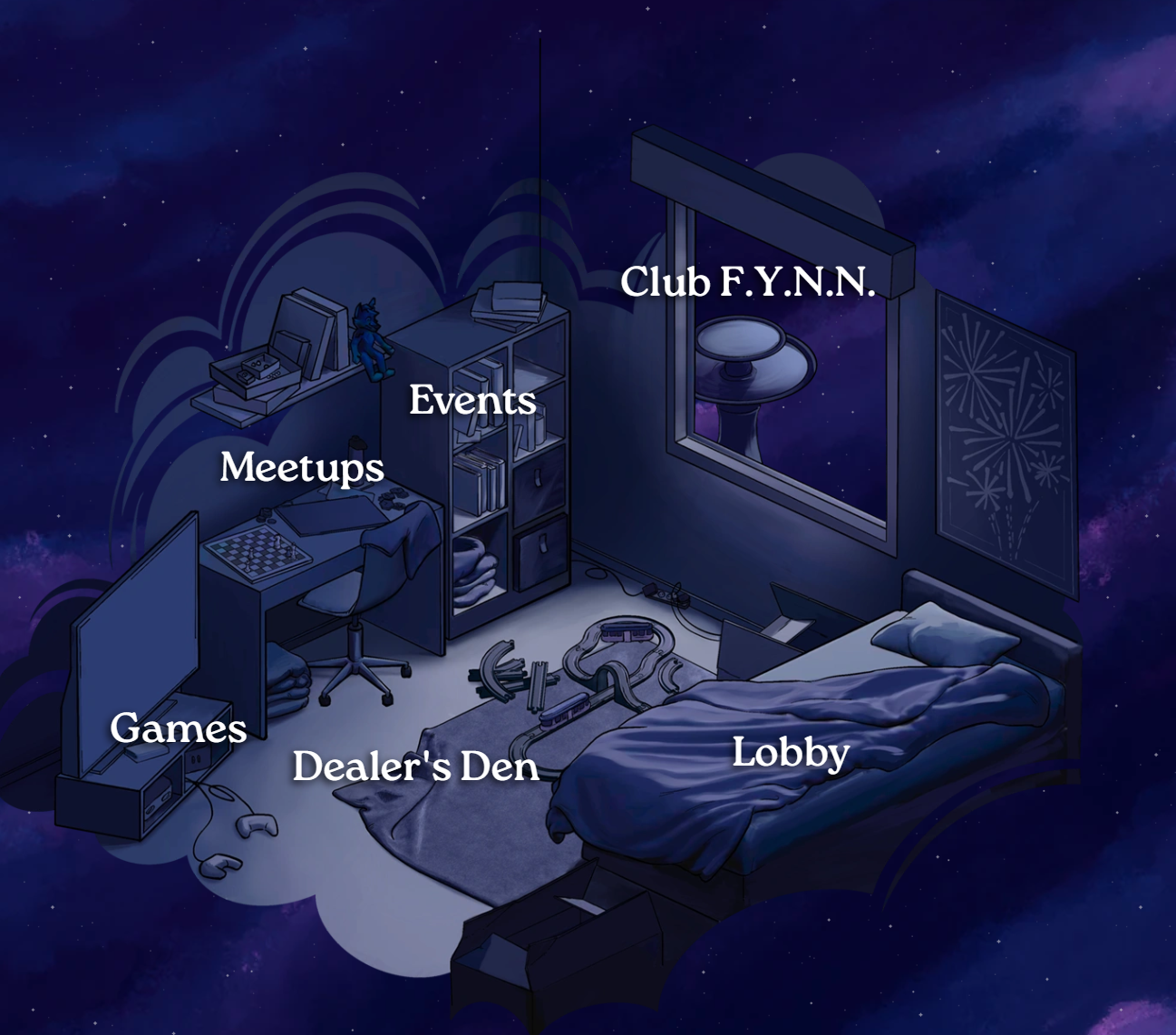
Once you have selected a scheduled event or an area such as the Lobby, you can press the Quick Join button to join any instance.
This will send you a VRChat invite from Furality, which you can use to access one of the Furality instances.
You can pick a specific instance by scrolling down and selecting one manually.
You will also see if your friends are in instances and can join them this way, as well as the Friends area of the F.O.X. portal.
Please see our article on using the Friends feature to join your friends’ instances
We also have an article on forming Travel Parties to group and move between instances together
Auto Joining instances
If the instance you want to join is a part of the schedule (like Meet-Ups, Event panel or Club F.Y.N.N), you can select Auto Join ahead of time.
Auto Join will add an event or meetup to your personal Auto Join list.
About 5 minutes before that event starts, you will receive an automatic invite in VRChat.
This will help you keep track of the things you want to see without hopping into your overlay.
You can fine tune the Auto Join preferences by pressing the cogwheel button to the left of Auto Join.
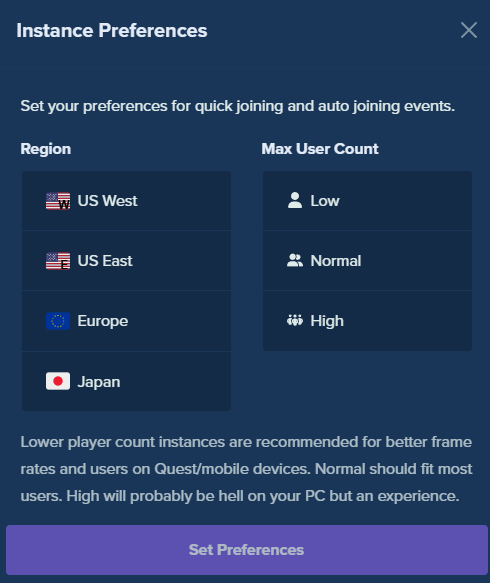
This lets you change the region you wish to join by default (like US West) and define the user count between low, normal, or high.
I highly recommend watching our video tutorial on navigating and using our F.O.X. portal.
Note: You no longer need the web browser extension to import your friends, this is done automatically via linking your VRChat account and Furality portal account.
Still need support beyond what's in this article?
Please visit our Help Forum on the community Discord for more support
Our guest experience team members are available to help answer your questions year-round!